
The composer
Everything in the composer — formatting toolbar, AI assistance, attachments, canned responses, signatures, scheduling, and internal notes.
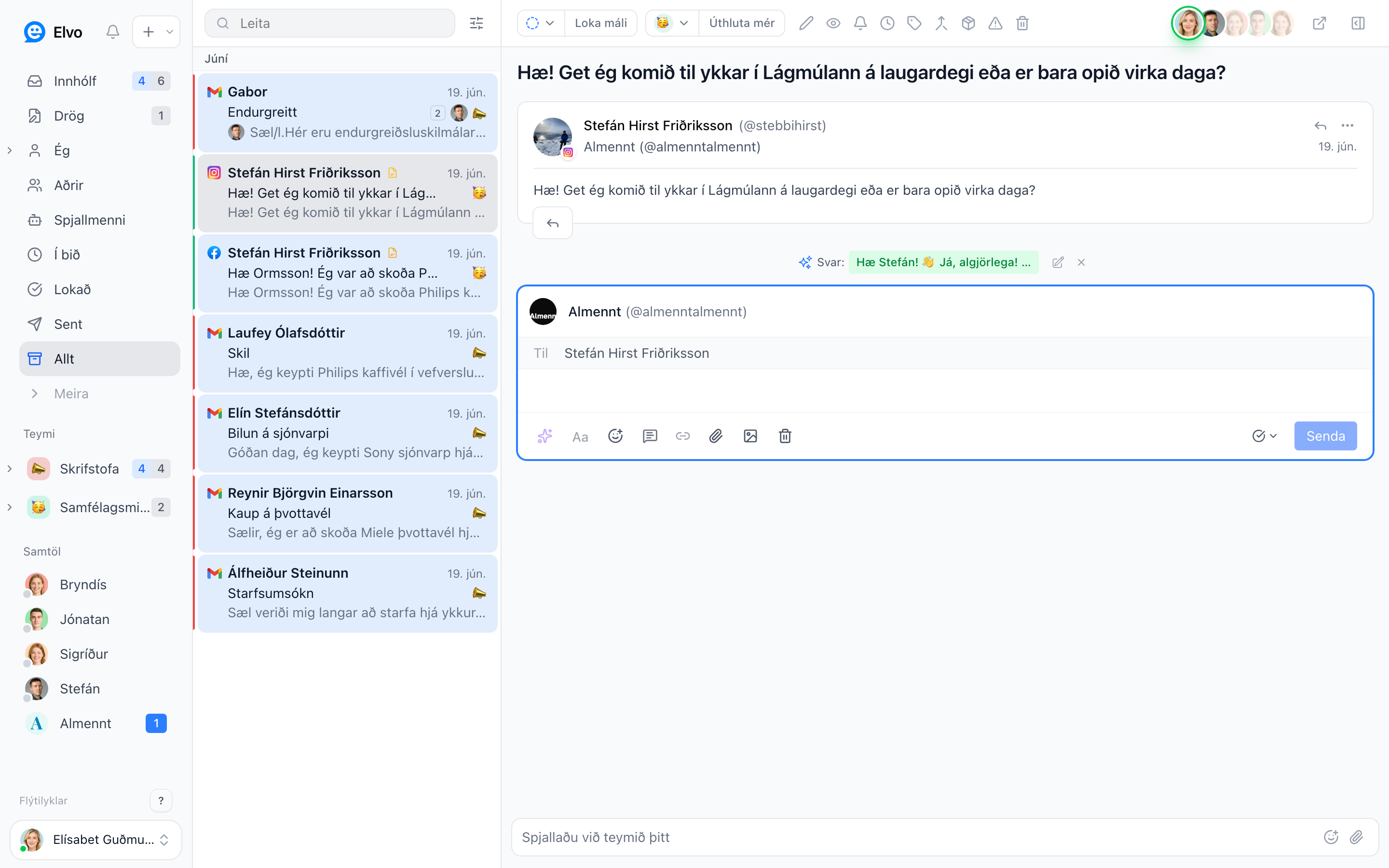
When you reply to a ticket the composer opens inside the conversation. From there you reply to the customer and use all the tools: text formatting, AI, attachments, and more. In addition, the bottom of every ticket always has the note field — a quick way to jot an internal note or chat with your team without the customer seeing it.
 12
12- 1Composer — where you write your reply to the customer. Opens inside the conversation when you click Reply (or press R).
- 2Note field — the quick field at the bottom for an internal note or a team chat. The customer never sees it.
Reply or note
There are two ways to write in a ticket — in two different places:
- Reply — written in the composer; goes to the customer on the channel the ticket arrived on.
- Note — written in the note field at the bottom; an internal note only your teammates can see.
Inside the composer itself you can then choose Reply, Reply All, or Forward (for email) from the dropdown next to "To".
Recipients and subject
For email you control recipients and the subject line right in the "To" row:
- Cc and Bcc — click the button to add copy recipients (Cc) or blind copy recipients (Bcc).
- Subject — click Subject to edit the reply's subject line.
Pop-out window
Click the Pop out composer icon (top right of the composer) to move your reply into its own window. You can then keep writing while you browse other tickets or work elsewhere in Elvo. While the reply is open in a pop-out, the inline composer locks and shows who's editing — click Focus window to jump back to it.
Real-time collaboration
You can work the same tickets without stepping on each other. If a teammate is already drafting a reply in the same ticket, the composer shows "[name] is writing…" and locks so you don't overwrite their text. It unlocks again when they stop. The same applies while a reply is open in a pop-out window.
Formatting toolbar
Turn on the formatting toolbar to style your text. It includes:
- Style — headings and paragraphs.
- Bold, italic, underline, and strikethrough.
- Highlight.
- Bullet list and numbered list.
- Link — add a hyperlink to selected text.
Social channels (Meta / Instagram / Messenger) only support plain text, so the formatting toolbar doesn't apply there.
AI toolbar (AI assistance)
Turn on the AI toolbar to have the AI help with your reply:
- AI draft — writes a draft reply from your knowledge base.
- Rewrite — rephrases what you've written.
- Proofread — fixes spelling and grammar.
- Tone — adjusts the tone (e.g. formal or friendly).
- Translate — translates the reply into another language.
- Clean — tidies and simplifies the text.
- Custom prompt — type your own instruction (e.g. "cut this in half").
The AI shows the original next to the result so you can compare, and you click Apply to accept — or ignore it. Nothing is sent until you send it yourself.
Attachments
- Attach a file (📎) or image — choose from your computer.
- Drag and drop — drop files straight onto the composer.
- Oversized attachments — if they exceed the limit, Elvo offers to send them as a download link instead (and you can undo that).
Canned responses and signature
- Canned responses — insert a saved reply; you can insert it, append it, or replace the current text. See Canned responses.
- Signature — added automatically at the bottom; you can expand it to review or edit. See Signatures.
Sender
Choose which address the reply goes from — personal or shared addresses you have access to. The default is the address the ticket arrived on.
Schedule send
Instead of sending right away you can send later: in one hour, in four hours, tomorrow at 9, or at a custom time. You can also clear the schedule.
Send
Click Send (⌘↵). Under more send options you'll find things like sending and resolving
the ticket in one step. Want to start over? Click the trash icon to discard the draft. See more
keyboard shortcuts.
Quoting a message
When you reply to a customer by email, the previous messages are carried along automatically as a quote (the recipient can expand or hide it). In internal notes and team chat you can quote a specific message: hover over the message and click the reply icon — it appears as a quote at the top of your reply.
Internal notes in detail
In note mode you have the same tools (attachments, emoji) plus @-mentions:
- Mention a person —
@namenotifies them and pulls them into the ticket. - Mention the whole team — let everyone know at once.
The customer never sees notes. See more in Replying to customers.