
The interface
Learn the Elvo interface — sidebar, ticket list, conversation view, and right panel — so you can move around fast.
Elvo is divided into four areas that are always in the same place: the sidebar for navigation, the ticket list, the conversation view where you read and reply, and the right panel with context and integrations. Once you know the four areas, you know the whole app.
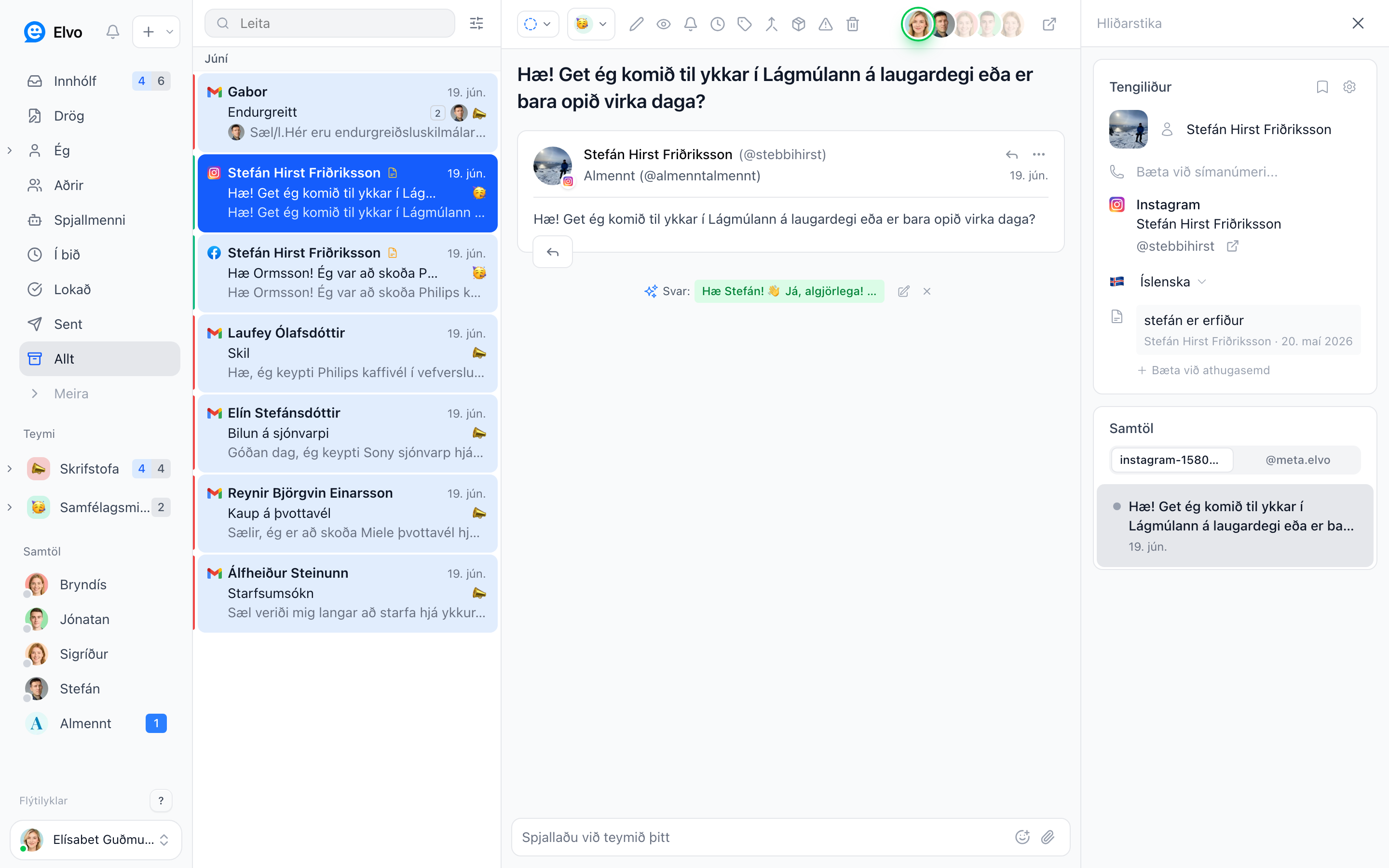
- 1Sidebar — Inbox, folders, teams
- 2Ticket list — conversations in the selected folder
- 3Conversation view — read and reply
- 4Right panel — context and integrations
1. Sidebar
The sidebar is your navigation hub. From here you reach the Inbox, folders like On hold
and Archive, your teams, and search. At the bottom you'll find your name,
settings, and keyboard shortcuts (?). Click a folder to filter the ticket list.
2. Ticket list
The list shows every ticket in the selected folder. Each row shows the sender, a short preview of the latest message, the time, the status (color-coded on the left), and who's responsible. Click a ticket to open it.
3. Conversation view
This is where you read the whole conversation in order and reply to the customer at the bottom. Internal notes are visible only to your teammates — the customer never sees them. The ticket's actions sit at the top: assign, change status, archive, and more.
4. Right panel
The right panel shows context: contact details, previous interactions, and links to other systems. Open and close it with the panel icon at the top right.
Tip
Almost every action has a keyboard shortcut. Click ? at the bottom of the sidebar to see them all and save yourself a lot of clicks.
FAQ
Can I hide the right panel? Yes — click the panel icon at the top right to open or close it.
Why is the ticket list empty? There are no tickets in the selected folder. Try the All folder to see every ticket in the company.