
Working with tickets
Open, hold, and resolve customer conversations — assign ownership and keep your inbox tidy.
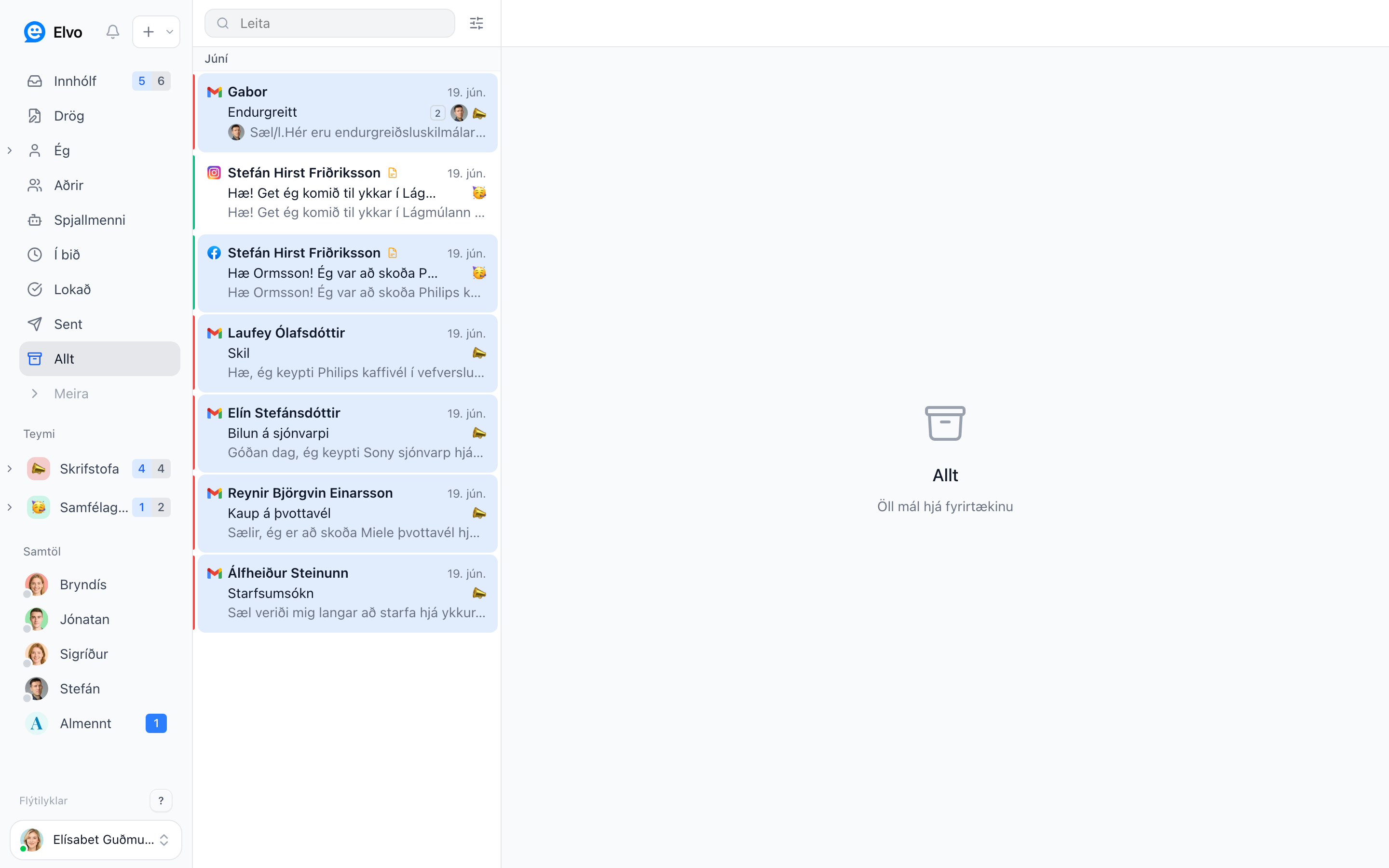
Each customer conversation is a ticket. The ticket list shows every ticket in the selected folder, its status, who's responsible, and which channel it arrived on. This is your workspace from morning to evening.
Ticket status
The status shows where a ticket is in the process, and the color code on the left makes it visible at a glance:
- Open — needs attention. New or unanswered.
- On hold — waiting on the customer or something else; the ticket leaves the inbox temporarily and returns when the customer replies.
- Resolved — handled and closed. Reopens automatically if the customer replies.
Change the status at the top of the ticket, or with a keyboard shortcut.
Assignment
Assign a ticket to yourself or a teammate so it's clear who's responsible and nothing falls between the cracks. Choose Assign at the top of the ticket. The Mine and Others folders quickly show what's on your plate and what others are working on.
Folders
The sidebar groups tickets so you can focus:
- Inbox — active tickets that need attention.
- On hold and Closed — tickets by status.
- Sent, Drafts, and All — an overview of sent mail, unfinished drafts, and everything.
- Team folders — one inbox per team.
Ticket actions
At the top of each ticket, and on right-click in the list, you reach the common actions: reply, assign, change status, tag, archive, merge two tickets into one, and put on hold.
Keyboard shortcuts
Power users work almost entirely from the keyboard. Examples: R replies, N writes a note, B
archives, Z puts on hold. Click ? at the bottom of the sidebar to see all the shortcuts.
Tip
Aim for "inbox zero", when a ticket is handled, resolve or archive it so only what truly needs attention is left in front of you.